AI Insights | AI Authoring
Plain language means business.
Ask a question and get an answer. Describe an adoption problem and get a solution built, all through conversation.
Choose new ways to engage WalkMe:
AI Insights
Glean insights about your adoption data as easily as having a conversation.
From question
to evidence.
 All systems
 AI Insights
What would you like to explore today?

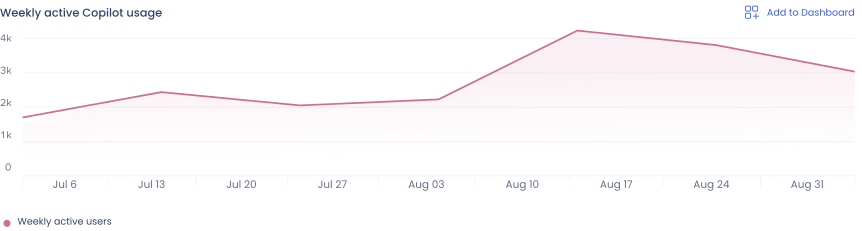
Weekly active users is up modestly over the past 2 months, but activation is only 38% of licensed seats, flat for the same time period.
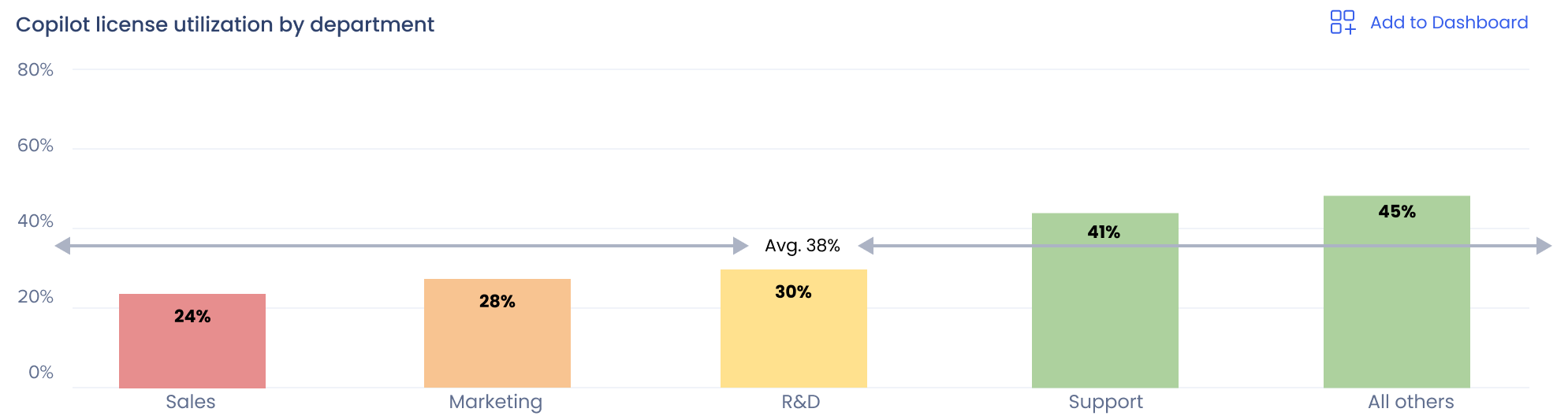
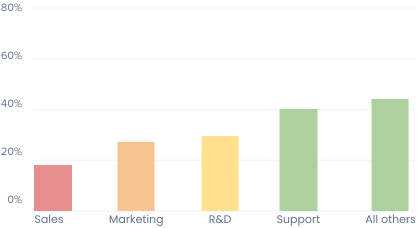
Sales has the lowest activation rate (24%) despite being the most heavily licensed department.
Copilot dashboard

Start with a question.
Ask anything about adoption in plain language and get answers. License utilization, user behavior, and questions about the impact of your in-app guidance are all fair game.
Sit back and get an answer.
WalkMe returns an answer along with a chart or table. Data visualizations are tailored to the response. No need to filter and hunt through dashboards.
Dig deeper into the numbers.
Ask follow-up questions to further your analysis. Every answer comes with provenance so you know exactly where it came from and how it was calculated.
Save and revisit.
Save any table, chart, or graph to a custom dashboard so you can revisit at a future date without recreating previous chats. Continue prior conversations with session history.
Chat with us to see AI Insights live.
AI Authoring
If you can describe what you want built, WalkMe will build it. In-app guidance, segmentation logic, and even customized CSS.
From brief to built.
 AI Authoring
Copilot Activation ShoutOut

Copilot can help with that. Try it out!
- Frequency: Appears when a user composes an email longer than a few lines.
Copilot Activation ShoutOut
Copilot can help with that.
- Frequency: Appears when a user composes an email longer than a few lines.
- CTA: https://outlook.office.com/mail/copilot
Copilot Activation ShoutOut
Copilot can help with that.
- Frequency: Appears once when a user composes an email longer than a few lines.
- Segment: Sales
- CTA: https://outlook.office.com/mail/copilot
What would you like to build today?
Copilot Activation ShoutOut
Copilot can help with that. Try it out!
- Frequency: Appears when a user composes an email longer than a few lines.
Copilot Activation ShoutOut
Copilot can help with that.
- Frequency: Appears when a user composes an email longer than a few lines.
- CTA: https://outlook.office.com/mail/copilot
Copilot Activation ShoutOut
Copilot can help with that.
- Frequency: Appears once when a user composes an email longer than a few lines.
- Segment: Sales
- CTA: https://outlook.office.com/mail/copilot


Describe the
business problem.
Start with your own words. Describe any business challenge or digital adoption solution you want built to begin the conversation.
Discuss the best approach.
Consult with WalkMe about your situation and potential solutions. Describe what you're considering and discuss your options. Then align on parameters before WalkMe generates a live preview.
Edit the plan before it's built.
Watch WalkMe bring the conversation to life with a live preview you can review and adjust. Add images and CTAs. Tweak the copy or design. Or even change your mind and swap to a new type of guidance altogether.
Add rules and segmentation.
Define segments and craft display conditions at any point in the process. Simply describe the scenarios where you want your in-app guidance to appear and WalkMe will develop the logic for you.
Accept and you're done.
Once you're content with the plan, all you have to do is approve and relax. WalkMe will convert your plan into a completed build available to manage in your Editor. The only question is what will you build next?
"WalkMe closes the loop AI investments leave open: describe the problem, ship the fix, prove the outcome, a human at every step."
Keith Kirkpatrick,
VP and Research Director, Futurum Group
