Insights d’IA | Création d’IA
Un langage clair est bon pour les affaires.
Posez une question et obtenez une réponse. Décrivez un problème d’adoption et obtenez une solution intégrée, le tout par la conversation.
Nouvelles façons d'interagir avec WalkMe :
Insights d'IA
Obtenez des insights sur vos données d'adoption aussi facilement qu'en ayant une conversation.
De la question
à la preuve.
 All systems
 AI Insights
What would you like to explore today?

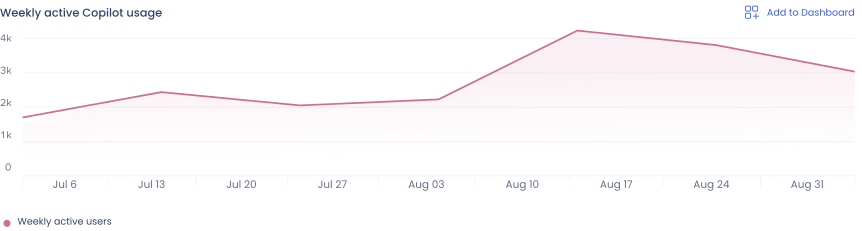
Weekly active users is up modestly over the past 2 months, but activation is only 38% of licensed seats, flat for the same time period.
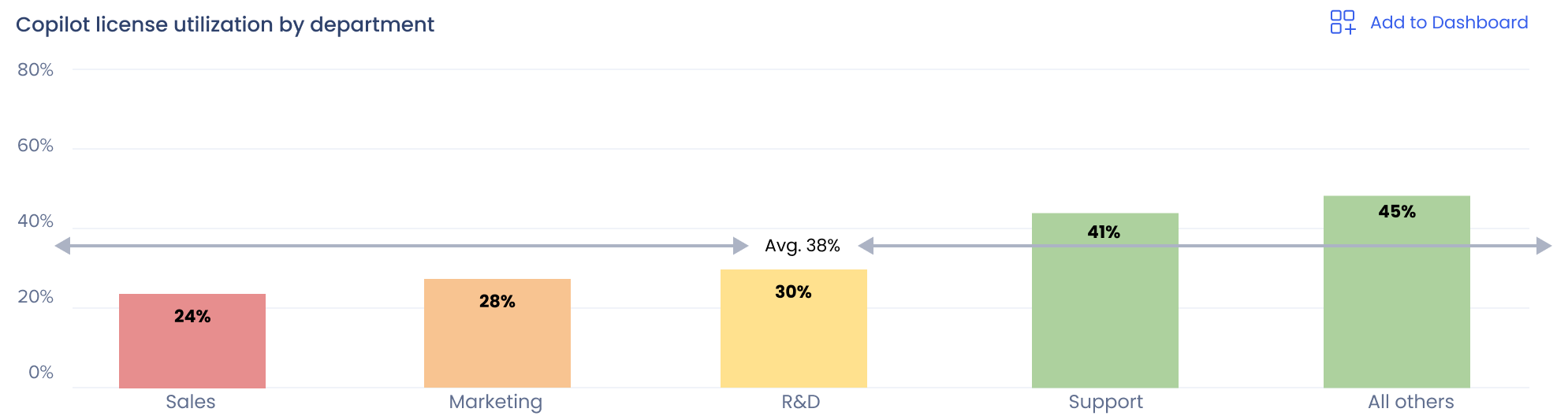
Sales has the lowest activation rate (24%) despite being the most heavily licensed department.
Copilot dashboard

Commencez par une question.
Posez n'importe quelle question sur l'adoption en langage simple et obtenez des réponses. L'utilisation des licences, le comportement des utilisateurs et l'impact de vos guides in-app sont tous concernés.
Détendez-vous et obtenez une réponse.
WalkMe renvoie une réponse accompagnée d'un graphique ou d'un tableau. Les visualisations de données sont adaptées à la réponse. Plus besoin de filtrer et de fouiller dans les tableaux de bord.
Approfondissez les chiffres.
Posez des questions complémentaires pour approfondir votre analyse. Chaque réponse est accompagnée de sa provenance, afin que vous sachiez exactement d'où elle vient et comment elle a été calculée.
Enregistrez et consultez plus tard.
Enregistrez n'importe quel tableau, graphique ou diagramme dans un tableau de bord personnalisé afin de pouvoir le consulter plus tard sans recréer les conversations précédentes. Poursuivez vos conversations précédentes grâce à l'historique des sessions.
Discutez avec nous pour voir les insights d’IA en direct.
Création d'IA
Si vous pouvez décrire ce que vous voulez construire, WalkMe le construira. Guidage in-app, logique de segmentation et même CSS personnalisé.
Du brief à la réalisation.
 AI Authoring
Copilot Activation ShoutOut

Copilot can help with that. Try it out!
- Frequency: Appears when a user composes an email longer than a few lines.
Copilot Activation ShoutOut
Copilot can help with that.
- Frequency: Appears when a user composes an email longer than a few lines.
- CTA: https://outlook.office.com/mail/copilot
Copilot Activation ShoutOut
Copilot can help with that.
- Frequency: Appears once when a user composes an email longer than a few lines.
- Segment: Sales
- CTA: https://outlook.office.com/mail/copilot
What would you like to build today?
Copilot Activation ShoutOut
Copilot can help with that. Try it out!
- Frequency: Appears when a user composes an email longer than a few lines.
Copilot Activation ShoutOut
Copilot can help with that.
- Frequency: Appears when a user composes an email longer than a few lines.
- CTA: https://outlook.office.com/mail/copilot
Copilot Activation ShoutOut
Copilot can help with that.
- Frequency: Appears once when a user composes an email longer than a few lines.
- Segment: Sales
- CTA: https://outlook.office.com/mail/copilot


Décrivez le
problème métier.
Commencez avec vos propres mots. Décrivez n'importe quel défi métier ou solution d'adoption digitale que vous souhaitez créer pour lancer la conversation.
Discutez de la meilleure approche.
Consultez WalkMe à propos de votre situation et des solutions possibles. Décrivez ce que vous envisagez et discutez de vos options. Puis alignez-vous sur les paramètres avant que WalkMe ne génère un aperçu en direct.
Modifiez le plan avant qu'il ne soit créé.
Regardez WalkMe donner vie à la conversation avec un aperçu en direct que vous pouvez examiner et ajuster. Ajoutez des images et des CTA. Ajustez le texte ou le design. Ou changez d'avis et passez à un tout autre type de guidage.
Ajoutez des règles et de la segmentation.
Définissez des segments et créez des conditions d'affichage à n'importe quel moment du processus. Décrivez simplement les scénarios où vous souhaitez que votre guidage in-app apparaisse, et WalkMe développera la logique pour vous.
Acceptez, c'est terminé.
Une fois que vous êtes satisfait du plan, il ne vous reste plus qu'à approuver et à vous détendre. WalkMe convertira votre plan en une réalisation complète, gérable dans l'éditeur. La seule question : que construirez-vous ensuite ?
« WalkMe boucle la boucle que les investissements en IA laissent ouverte : décrivez le problème, déployez la correction, prouvez le résultat, avec un humain à chaque étape. »
Keith Kirkpatrick,
VP et directeur de recherche, Futurum Group
