KI-Erkenntnisse | KI-Erstellung
Natürliche Sprache bedeutet Business.
Stellen Sie eine Frage und erhalten Sie eine Antwort. Beschreiben Sie ein Problem bei der Software-Einführung und lassen Sie eine Lösung erstellen – alles im Dialog.
Neue Wege zur Nutzung von WalkMe:
KI-Erkenntnisse
Gewinnen Sie Erkenntnisse über Ihre Nutzungsdaten so einfach wie in einem Gespräch.
Von der Frage
zum Beweis.
 All systems
 AI Insights
What would you like to explore today?

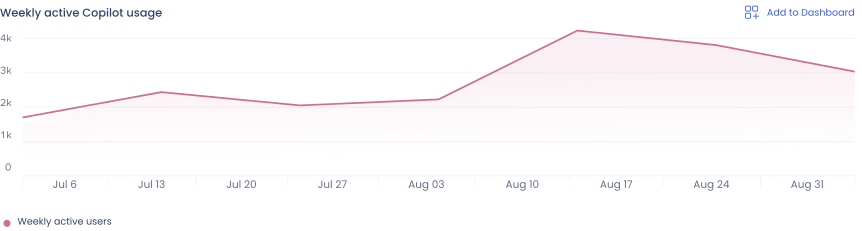
Weekly active users is up modestly over the past 2 months, but activation is only 38% of licensed seats, flat for the same time period.
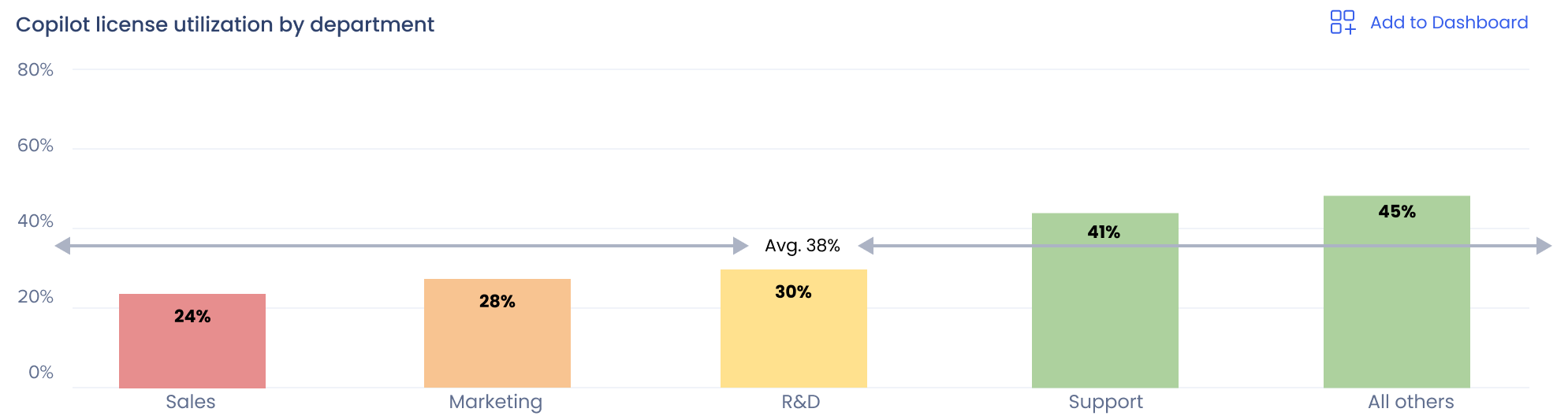
Sales has the lowest activation rate (24%) despite being the most heavily licensed department.
Copilot dashboard

Beginnen Sie mit einer Frage.
Stellen Sie Fragen zur Nutzung in einfacher Sprache und erhalten Sie Antworten. Lizenznutzung, Nutzerverhalten und die Wirkung Ihrer In-App-Anleitung sind alle möglich.
Lehnen Sie sich zurück und erhalten Sie eine Antwort.
WalkMe liefert eine Antwort zusammen mit einem Diagramm oder einer Tabelle. Datenvisualisierungen werden auf die Antwort abgestimmt. Kein Filtern und Durchsuchen von Dashboards mehr nötig.
Tiefer in die Zahlen eintauchen.
Stellen Sie Folgefragen, um Ihre Analyse zu vertiefen. Jede Antwort enthält eine Herkunftsangabe, sodass Sie genau wissen, woher sie kommt und wie sie berechnet wurde.
Speichern und später wieder aufrufen.
Speichern Sie jede Tabelle, jedes Diagramm oder jede Grafik in einem individuellen Dashboard, damit Sie später ohne erneutes Nachstellen früherer Chats wieder darauf zugreifen können. Setzen Sie frühere Unterhaltungen mit dem Sitzungsverlauf fort.
Chatten Sie mit uns, um AI Insights live zu erleben.
KI-Erstellung
Wenn Sie beschreiben können, was erstellt werden soll, wird WalkMe es bauen. In-App-Anleitungen, Segmentierungslogik und sogar individuelles CSS.
Vom Briefing zum Build.
 AI Authoring
Copilot Activation ShoutOut

Copilot can help with that. Try it out!
- Frequency: Appears when a user composes an email longer than a few lines.
Copilot Activation ShoutOut
Copilot can help with that.
- Frequency: Appears when a user composes an email longer than a few lines.
- CTA: https://outlook.office.com/mail/copilot
Copilot Activation ShoutOut
Copilot can help with that.
- Frequency: Appears once when a user composes an email longer than a few lines.
- Segment: Sales
- CTA: https://outlook.office.com/mail/copilot
What would you like to build today?
Copilot Activation ShoutOut
Copilot can help with that. Try it out!
- Frequency: Appears when a user composes an email longer than a few lines.
Copilot Activation ShoutOut
Copilot can help with that.
- Frequency: Appears when a user composes an email longer than a few lines.
- CTA: https://outlook.office.com/mail/copilot
Copilot Activation ShoutOut
Copilot can help with that.
- Frequency: Appears once when a user composes an email longer than a few lines.
- Segment: Sales
- CTA: https://outlook.office.com/mail/copilot


Beschreiben Sie das
Geschäftsproblem.
Beginnen Sie mit Ihren eigenen Worten. Beschreiben Sie jede geschäftliche Herausforderung oder Digital-Adoption-Lösung, die Sie erstellen lassen möchten, um das Gespräch zu starten.
Den besten Ansatz besprechen.
Sprechen Sie mit WalkMe über Ihre Situation und mögliche Lösungen. Beschreiben Sie, was Sie in Betracht ziehen, und diskutieren Sie Ihre Optionen. Stimmen Sie dann die Parameter ab, bevor WalkMe eine Live-Vorschau erzeugt.
Den Plan vor dem Build bearbeiten.
Sehen Sie zu, wie WalkMe das Gespräch mit einer Live-Vorschau zum Leben erweckt, die Sie prüfen und anpassen können. Fügen Sie Bilder und CTAs hinzu. Passen Sie Text oder Design an. Oder ändern Sie Ihre Meinung und wechseln Sie zu einem ganz anderen Guidance-Typ.
Regeln und Segmentierung hinzufügen.
Definieren Sie Segmente und erstellen Sie Anzeigebedingungen an jedem Punkt im Prozess. Beschreiben Sie einfach die Szenarien, in denen Ihre In-App-Anleitung erscheinen soll, und WalkMe entwickelt die Logik für Sie.
Freigeben, fertig.
Sobald Sie mit dem Plan zufrieden sind, müssen Sie nur noch freigeben und sich zurücklehnen. WalkMe wandelt Ihren Plan in einen fertigen Build um, den Sie im Editor verwalten können. Die einzige Frage ist: Was bauen Sie als Nächstes?
„WalkMe schließt den Kreis, den KI-Investitionen offen lassen: das Problem beschreiben, die Lösung bereitstellen, das Ergebnis belegen – ein Mensch bei jedem Schritt.“
Keith Kirkpatrick,
VP und Research Director, Futurum Group
